FileEssential
Free, source-checked, and built to be reused
The Excel cheat sheet you'll actually keep open
Search 71 Windows and Mac shortcuts, copy 19 essential formulas, print a one-page desk reference, or practice in a working Excel workbook. No signup. No email gate.
One printable page, Windows and Mac keys side by side. Or search the shortcuts online
- Shortcuts
- 71
- Formulas
- 19
- File formats
- 4
Choose your edition
More useful than a screenshot
Print it, edit it, teach from it, or load the structured data into your own project. Every edition is ungated.
PDF · 7 KB
One-page US Letter PDF
Landscape desk reference with essential shortcuts and all 19 formulas, sized for US Letter.
Download Letter PDFPDF · 7 KBOne-page A4 PDF
The same print-friendly reference sized for A4 paper.
Download A4 PDFPDF · 22 KBComplete reference PDF
Every shortcut, formula example, tip, source note, and license detail.
Download complete PDFXLSX · 24 KBPractice workbook
Five real sheets: shortcuts, formulas, practice data, exercises, and notes.
Download Excel workbookInteractive reference
Find an Excel shortcut in seconds
Search by task or keys, switch platforms, and narrow the list to the shortcuts worth memorising first.
Showing 42 of 71 shortcuts for Windows.
FileEssential
Open a workbook
FileEssential
Create a new workbook
FileEssential
Print the workbook
EditingEssential
Copy selected cells
EditingEssential
Cut selected cells
EditingEssential
Paste copied cells
EditingEssential
Open Paste Special
On Mac, Ctrl+Option+V and Cmd+Option+V are also documented.
EditingEssential
Undo the last action
EditingEssential
Redo the last action
Cmd+Shift+Z is also documented on Mac.
EditingEssential
Find text or values
EditingEssential
Find and replace
Cmd+Shift+H is also documented on Mac.
EditingEssential
Clear selected cell contents
EditingEssential
Fill the top cell down
EditingEssential
Insert cells, rows, or columns
EditingEssential
Delete cells, rows, or columns
NavigationEssential
Open the Go To dialog
NavigationEssential
Move to the start of the sheet
On a MacBook, use Ctrl+Fn+Left Arrow.
NavigationEssential
Move to the last used cell
On a MacBook, use Ctrl+Fn+Right Arrow.
NavigationEssential
Jump to the edge of a data region
NavigationEssential
Move to the next worksheet
NavigationEssential
Move to the previous worksheet
Data entryEssential
Edit the active cell
Data entryEssential
Complete an entry and move down
Data entryEssential
Start a new line inside a cell
Data entryEssential
Insert the current date
FormattingEssential
Open Format Cells
FormattingEssential
Apply or remove bold
FormattingEssential
Apply Currency number format
FormattingEssential
Apply Percentage number format
FormattingEssential
Create a table
SelectionEssential
Select the entire column
SelectionEssential
Select the entire row
SelectionEssential
Select the current data region
SelectionEssential
Extend selection to the edge of data
DataEssential
Turn filters on or off
DataEssential
Open the active filter list
DataEssential
Run Flash Fill
FormulasEssential
Show or hide formulas
FormulasEssential
Cycle absolute and relative references
FormulasEssential
Insert an AutoSum formula
WorkbookEssential
Insert a new worksheet
Copy-ready formulas
The Excel formulas people actually use
Each example is ready to copy, with a practical warning that helps you avoid the most common mistake.
Showing 19 of 19 formulas.
Math
SUM
Add values
=SUM(B2:B10)Pro tip: SUM ignores text and blank cells.
See syntax and worked examplesMath
AVERAGE
Calculate the arithmetic mean
=AVERAGE(B2:B10)Pro tip: Blank cells are ignored; zero values are included.
See syntax and worked examplesMath
SUMIF
Add values that meet one condition
=SUMIF(A2:A20, "West", B2:B20)Pro tip: Use SUMIFS when you need multiple conditions.
See syntax and worked examplesMath
SUMIFS
Add values that meet several conditions
=SUMIFS(C2:C20, A2:A20, "West", B2:B20, ">100")Pro tip: SUMIFS puts the sum range first; SUMIF puts it last.
See syntax and worked examplesMath
COUNTIF
Count cells that meet one condition
=COUNTIF(C2:C100, "Complete")Pro tip: Wildcards work: * matches any text and ? matches one character.
See syntax and worked examplesMath
COUNTIFS
Count rows that meet several conditions
=COUNTIFS(A2:A50, "West", B2:B50, ">100")Pro tip: Every criteria range must be the same size.
See syntax and worked examplesLogic
IF
Return one result when true and another when false
=IF(B2>=70, "Pass", "Review")Pro tip: Use AND or OR inside the logical test for multiple rules.
See syntax and worked examplesLogic
IFERROR
Replace formula errors with a fallback
=IFERROR(A2/B2, 0)Pro tip: Do not hide errors until you understand their cause.
See syntax and worked examplesLookup
XLOOKUP
Find a match and return a related value
=XLOOKUP(E2, A2:A100, C2:C100, "Not found")Pro tip: Unlike VLOOKUP, XLOOKUP can return values from either side.
See syntax and worked examplesLookup
VLOOKUP
Find a value in the first column of a table
=VLOOKUP(E2, A2:C100, 3, FALSE)Pro tip: Use FALSE for an exact match unless you deliberately need approximate matching.
See syntax and worked examplesLookup
INDEX
Return a value by its row and column position
=INDEX(C2:C100, MATCH(E2, A2:A100, 0))Pro tip: Pair INDEX with MATCH for a flexible lookup in older Excel versions.
See syntax and worked examplesLookup
MATCH
Return the position of a matching value
=MATCH(E2, A2:A100, 0)Pro tip: Use 0 for an exact match.
See syntax and worked examplesText
TEXTJOIN
Join text with a chosen delimiter
=TEXTJOIN(", ", TRUE, A2:C2)Pro tip: Set ignore_empty to TRUE to skip blank cells.
See syntax and worked examplesText
CONCAT
Combine text from several cells or ranges
=CONCAT(A2, " ", B2)Pro tip: Use TEXTJOIN when you need a separator inserted automatically.
See syntax and worked examplesText
LEFT / RIGHT / MID
Extract characters from text
=LEFT(A2, 3)Pro tip: Use MID when the text you need begins in the middle of a value.
See syntax and worked examplesText
TRIM
Remove extra spaces from text
=TRIM(A2)Pro tip: TRIM keeps single spaces between words.
See syntax and worked examplesDate
TODAY
Return the current date
=TODAY()-A2Pro tip: TODAY recalculates when the workbook recalculates.
See syntax and worked examplesDate
DATEDIF
Calculate elapsed years, months, or days
=DATEDIF(A2, TODAY(), "y")Pro tip: Use y, m, or d for complete years, months, or days.
See syntax and worked examplesMath
AVERAGEIF
Average values that meet a condition
=AVERAGEIF(A2:A20, "West", B2:B20)Pro tip: The criteria and average ranges should be the same size.
See syntax and worked examplesLearn by doing
The download is a real workbook, not a poster in disguise
Open the workbook to browse every shortcut and formula, then work through invented sales data with live SUM, AVERAGE, COUNTIF, SUMIF, IF, and XLOOKUP examples. Cached results are included for viewers that do not calculate formulas.
Workbook contents
- 01
Shortcuts
All 71 rows with filters and platform keys
- 02
Formulas
Syntax, examples, purpose, and practical tips
- 03
Practice Data
Invented sales data with calculated revenue
- 04
Formula Practice
Six working exercises with expected results
- 05
Read Me
Version, source, license, and attribution
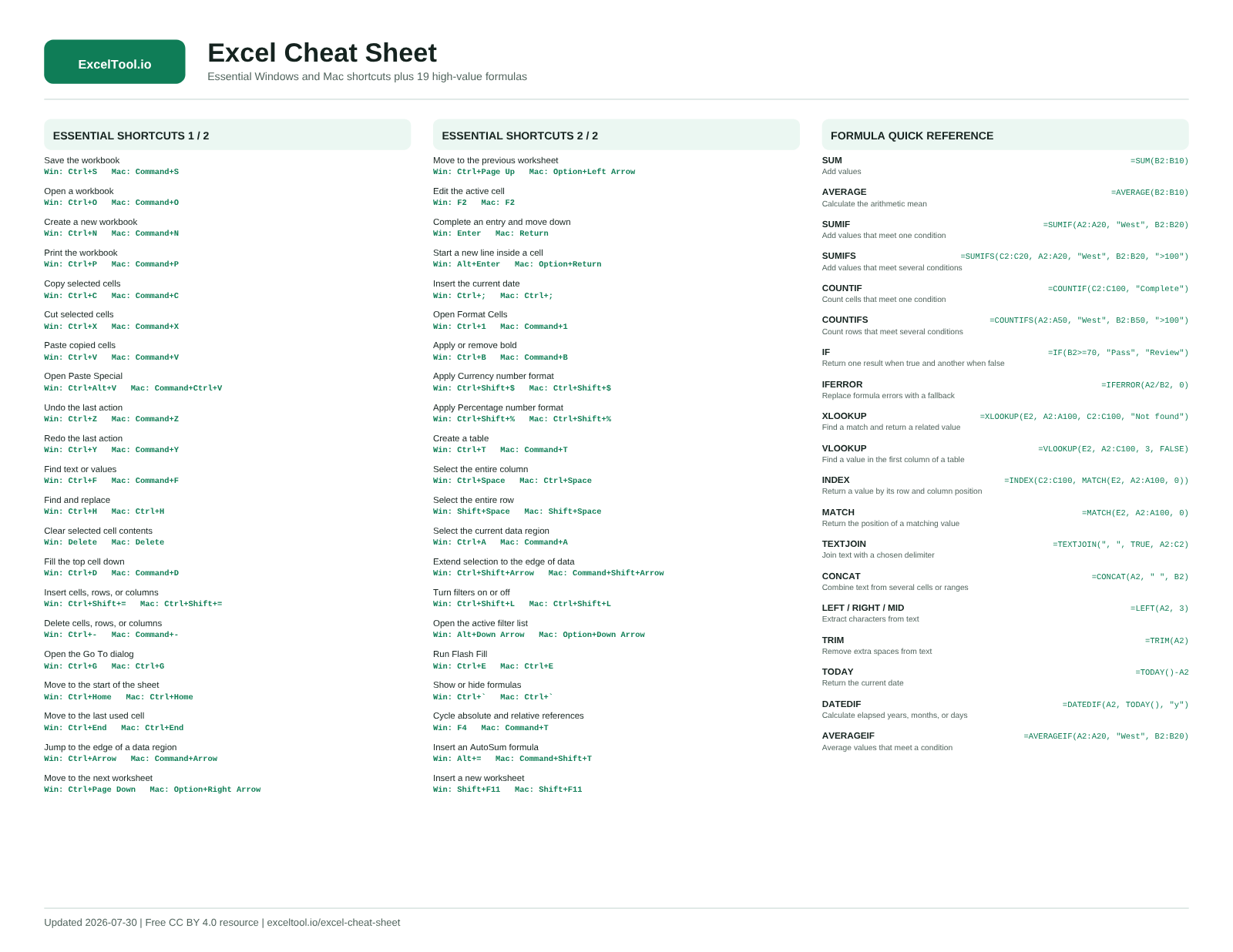
For blogs, courses and wikis
Use this cheat sheet on your site
Paste this into any page to show the cheat sheet with a credit link. The image is hosted here, so it stays current when the sheet is updated, and readers who click it land on the printable PDFs.
Embed code (HTML)
<a href="https://www.exceltool.io/excel-cheat-sheet"><img src="https://www.exceltool.io/cheat-sheet/excel-cheat-sheet-preview.png" alt="Excel cheat sheet: essential Windows and Mac shortcuts and 19 formulas on one page" width="800" height="618" loading="lazy" style="max-width:100%;height:auto"></a>
<p><a href="https://www.exceltool.io/excel-cheat-sheet">Excel cheat sheet by ExcelTool</a> (free PDF, CC BY 4.0)</p>Free under CC BY 4.0. Keep the “Excel cheat sheet by ExcelTool” link, or credit us your own way with a link to this page.
Built for teachers and publishers
Share it. Adapt it. Link to it.
The compiled cheat sheet is released under CC BY 4.0. You can reuse it in a course, company wiki, blog post, video description, or printed handout with attribution.
Suggested attribution
Excel Cheat Sheet by ExcelTool.io — https://www.exceltool.io/excel-cheat-sheet
Cite this page
APA
ExcelTool. (2026, July 30). Excel cheat sheet: 71 shortcuts, 19 formulas & practice workbook. https://www.exceltool.io/excel-cheat-sheet
MLA
"Excel Cheat Sheet: 71 Shortcuts, 19 Formulas & Practice Workbook." ExcelTool, 30 July 2026, www.exceltool.io/excel-cheat-sheet.
Methodology
Useful, current, and honest about limits
- Shortcut keys were checked against Microsoft's official Excel shortcut reference on July 30, 2026.
- Windows and Mac are separated because the same task often uses different keys.
- Keyboard layout, Excel version, and macOS system shortcuts can change behavior. Microsoft remains the source of truth.
- The JSON dataset and SHA-256 manifest make updates auditable and reuse straightforward.
Excel cheat sheet FAQ
Is this Excel cheat sheet free?
Yes. The web reference, printable PDFs, Excel workbook, CSV files, and JSON dataset are free to use without an account or email gate.
Does the cheat sheet cover both Windows and Mac?
Yes. The interactive reference lets you switch between Windows and Mac, and every shortcut card shows the keys documented for that platform.
Can I print the Excel cheat sheet on one page?
Yes. Separate landscape editions are provided for A4 and US Letter paper. A complete multi-page PDF is available when you want all 71 shortcuts.
Can I reuse the cheat sheet in a class, blog post, or company wiki?
Yes. The compiled resource is available under CC BY 4.0. You may share and adapt it, including commercially, with attribution to ExcelTool.io and a link to this page.
Are the keyboard shortcuts verified?
The shortcut list was checked against Microsoft's official Excel keyboard-shortcut reference on July 30, 2026. Behavior can still vary by Excel version, keyboard layout, and macOS system settings.
Ready to do the work?
Generate a formula from plain English or open a workbook in the browser—both free, private, and available without signup.