Excel Timesheet Template Generator
Build a weekly timesheet that works out hours from start, end and break times, splits overtime, and calculates pay from the hourly rate.
Free download - no sign-up, no email
timesheet-template.xlsx
- One row per day with start time, end time and break, and the hours worked as a formula.
- Dates filled in from the week start by formula, so one date change moves the whole week.
- Weekly total split into regular and overtime hours at the threshold you set.
Opens in Excel, Google Sheets, Numbers and LibreOfficeBuilt in your browser · nothing uploaded
Options
The date of the first row. Later rows add one day each.
Overtime is worked out per workweek, as the FLSA requires, even on a biweekly timesheet.
Shows the overtime split. Type over the times or clear them.
| A | B | C | D | E | F | G | H | |
|---|---|---|---|---|---|---|---|---|
| 1 | Timesheet | |||||||
| 2 | ||||||||
| 3 | Employee | |||||||
| 4 | Week starting | 9/14/2026 | ||||||
| 5 | Hourly rate | $25.00 | ||||||
| 6 | Overtime after (hours/week) | 40.00 | ||||||
| 7 | Overtime multiplier | 1.50 | ||||||
| 8 | ||||||||
| 9 | Day | Date | Start | End | Break (hours) | Hours | Regular | Overtime |
| 10 | Monday | =$B$4 | 8:00 | 17:30 | 0.50 | =IF(OR(C10="",D10=""),0,ROUND((D10-C10)*24-E10,2)) | =F10-H10 | =MIN(F10,MAX(0,SUM(F$10:F10)-$B$6)) |
| 11 | Tuesday | =B10+1 | 8:00 | 17:30 | 0.50 | =IF(OR(C11="",D11=""),0,ROUND((D11-C11)*24-E11,2)) | =F11-H11 | =MIN(F11,MAX(0,SUM(F$10:F11)-$B$6)) |
| 12 | Wednesday | =B11+1 | 8:00 | 17:00 | 0.50 | =IF(OR(C12="",D12=""),0,ROUND((D12-C12)*24-E12,2)) | =F12-H12 | =MIN(F12,MAX(0,SUM(F$10:F12)-$B$6)) |
| 13 | Thursday | =B12+1 | 8:00 | 18:30 | 0.50 | =IF(OR(C13="",D13=""),0,ROUND((D13-C13)*24-E13,2)) | =F13-H13 | =MIN(F13,MAX(0,SUM(F$10:F13)-$B$6)) |
| 14 | Friday | =B13+1 | 8:00 | 16:30 | 0.50 | =IF(OR(C14="",D14=""),0,ROUND((D14-C14)*24-E14,2)) | =F14-H14 | =MIN(F14,MAX(0,SUM(F$10:F14)-$B$6)) |
| 15 | Saturday | =B14+1 | =IF(OR(C15="",D15=""),0,ROUND((D15-C15)*24-E15,2)) | =F15-H15 | =MIN(F15,MAX(0,SUM(F$10:F15)-$B$6)) | |||
| 16 | Sunday | =B15+1 | =IF(OR(C16="",D16=""),0,ROUND((D16-C16)*24-E16,2)) | =F16-H16 | =MIN(F16,MAX(0,SUM(F$10:F16)-$B$6)) | |||
| 17 | Total hours | =SUM(F10:F16) | =SUM(G10:G16) | =SUM(H10:H16) | ||||
| 18 | Regular hours | =MIN(F17,$B$6) | ||||||
| 19 | Overtime hours | =MAX(0,F17-$B$6) | ||||||
| 20 | Regular pay | =F18*$B$5 | ||||||
| 21 | Overtime pay | =F19*$B$5*$B$7 | ||||||
| 22 | Total pay | =F20+F21 |
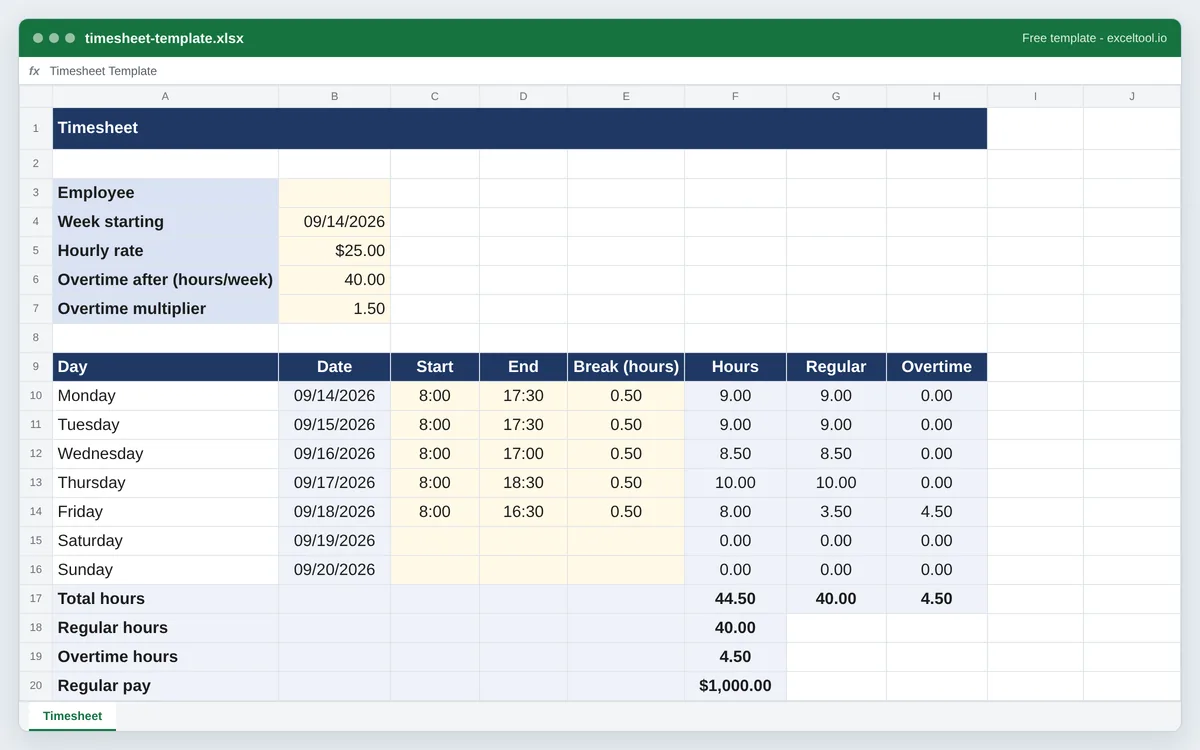
Preview of the first 22 rows. Cells shown as =SUM(...) are live formulas in the downloaded workbook, not pasted numbers.
Built in your browser · nothing uploadedtimesheet-template.xlsx · 1 sheetOpens in Excel, Google Sheets, Numbers and LibreOffice
What you get
- One row per day with start time, end time and break, and the hours worked as a formula.
- Dates filled in from the week start by formula, so one date change moves the whole week.
- Weekly total split into regular and overtime hours at the threshold you set.
- Regular pay, overtime pay at your multiplier, and total pay from the hourly rate.
- FLSA overtime by day: Regular and Overtime columns show which hours fell past 40 in the workweek, paid at 1.5x by default.
- Weekly or biweekly pay periods (up to four weeks), with overtime worked out per workweek and a pay period total.
Other templates
About this template
A timesheet is a record of hours that someone else has to trust: a manager approving it, a client being billed from it, a payroll run reading it. This builds a weekly one where the arithmetic is done by the sheet rather than by the person filling it in - type when you started, when you finished and how long you took for lunch, and the hours, the overtime split and the pay follow.
It suits hourly employees, contractors billing by the hour, small employers who run payroll from a spreadsheet, and anyone keeping a record of hours for a project. The rate, the overtime threshold and the multiplier are all cells at the top of the sheet, so a change to any of them re-prices the whole timesheet.
The sheet opens with the employee name, the week start date, the hourly rate, the overtime threshold in hours per week and the overtime multiplier in rows 3 to 7. Row 9 is the header: Day, Date, Start, End, Break (hours), Hours, Regular and Overtime. Rows 10 to 16 are Monday to Sunday. Below them, row 17 is Total hours, rows 18 and 19 split that into regular and overtime hours, and rows 20 to 22 give regular pay, overtime pay and total pay.
Start and End are entered as times - 9:00, 17:30 - and Break as a decimal number of hours, 0.5 for half an hour. The Hours cell subtracts the times, converts the result from a fraction of a day into hours and takes the break off. A day with no start or end shows 0 hours rather than an error, so an unfilled day does not disturb the week.
Overtime follows the federal Fair Labor Standards Act by default: non-exempt employees are owed 1.5 times their regular rate for hours over 40 in a workweek. The Regular and Overtime columns show where in the week the 40 hours ran out - a 10-hour Friday after 36 hours Monday to Thursday is 4 regular and 6 overtime. On a biweekly timesheet each week is its own workweek, because the FLSA does not let a short week offset a long one; some states, California among them, add daily overtime on top.
How to use it
- Set the rate and the overtime rule on this page - The hourly rate, the number of hours per week after which overtime applies (40 is the common default) and the overtime multiplier (1.5 for time and a half). All three land in cells at the top of the sheet and can be changed there later.
- Enter the week start date - Pick it in the date field. The Monday row takes it directly and each row below adds a day, so a whole week's dates come from one cell. Choose the day your working week starts on; the day names down the left are labels and can be retyped.
- Type start, end and break for each day worked - Times as 9:00 or 17:30 - Excel reads either. Break in hours as a decimal: 0.5, 1, 0.75. Leave a day off blank and its Hours cell stays at zero.
- Read the totals - Total hours sums the week. Regular hours is the total capped at the overtime threshold and Overtime hours is whatever exceeds it. Regular pay is regular hours times the rate; overtime pay is overtime hours times the rate times the multiplier; Total pay adds them.
- Choose weekly or biweekly - Pick Biweekly (or up to four weeks) as the pay period on this page and the sheet repeats the block for each workweek, with the following week's start date seven days on, and adds pay period totals of hours and pay at the bottom.
- Submit it - Print to PDF for a signed copy, or keep the workbook and add a sheet per month. Because the pay cells are formulas, an approver can check the arithmetic by clicking a cell rather than recomputing it.
Formulas in this workbook
Every formula below is written into the workbook itself, exactly as shown. The cell references are the ones the default options produce; change the row or column counts and they shift to match.
=B10+1- The Date column from Tuesday down: the day above plus one. Monday's date cell points at the week start date at the top, so changing that one cell re-dates the whole week.=IF(OR(C10="",D10=""),0,ROUND((D10-C10)*24-E10,2))- Hours on the Monday row. Excel stores a time as a fraction of a day, so end minus start times 24 is the elapsed hours; the break is subtracted and the result rounded to two decimals. The IF and OR return 0 when either time is missing, so a day off does not produce an error.=SUM(F10:F16)- Total hours in row 17: the seven daily Hours cells added together.=MIN(F17,$B$6)- Regular hours in row 18: the total, capped at the overtime threshold in B6. A 44-hour week with a 40-hour threshold gives 40 here.=MAX(0,F17-$B$6)- Overtime hours in row 19: total hours minus the threshold, floored at zero so a short week shows no negative overtime.=F18*$B$5- Regular pay in row 20: regular hours times the hourly rate in B5.=F19*$B$5*$B$7- Overtime pay in row 21: overtime hours times the rate times the overtime multiplier in B7.=F20+F21- Total pay in row 22: regular pay plus overtime pay.=MIN(F10,MAX(0,SUM(F$10:F10)-$B$6))- The Overtime column on each day: the week's hours so far, less the threshold in B6, capped at that day's hours. Hours worked after the 40th of the workweek land here, in the order they were worked.=F10-H10- The Regular column: the day's hours less its overtime. The two columns' totals match the weekly Regular and Overtime rows.
Customizing it
- Apply daily overtime instead of weekly by changing the Hours formula to cap at 8 and putting the excess in a new Overtime column: =MIN(F10,8) and =MAX(0,F10-8), then summing those columns.
- Handle an overnight shift by entering the end time as 24 hours plus the clock time, or by adding 1 to the end cell inside the formula: =ROUND((D10+1-C10)*24-E10,2) for a shift that finishes after midnight.
- Bill a client rather than pay an employee: rename the rate cell to your hourly rate, set the overtime multiplier to 1, and the Total pay row becomes the invoice figure.
- Add a project or task column between Day and Date so each day's hours can be tagged, then use a pivot table over several weeks to total hours by project.
- Round to the nearest quarter hour, if that is your payroll rule, by wrapping the Hours formula: =MROUND(existing formula,0.25).
Frequently Asked Questions
The Hours cell is a formula and it has to hold something. It checks for a missing start or end time and returns 0, which keeps the weekly total honest and avoids an error in a cell that a manager will read. Type both times and the real hours appear.
Type 9:00 or 17:30 and Excel recognizes it as a time. 5:30 PM works too. The cells are formatted as h:mm so the display stays consistent, and the Hours formula converts the difference into decimal hours.
The formula gives negative hours, because it reads that as a shift that ended before it started. For a genuine overnight shift, either add a day to the end cell in the formula as described in the customization tips, or split the shift across two rows.
Yes. It is the cell in B6, and the rate and multiplier are B5 and B7. Every pay and overtime formula reads those cells with absolute references, so editing them re-prices every week in the workbook.
One employee per workbook is the intent, with up to four weeks each. For a team, generate one workbook per person, or copy the sheet within a workbook and change the name at the top of each copy.