Employee Schedule Template - Weekly Shift Schedule
A weekly work schedule with shift start and end times for every employee, weekly hours and overtime by formula, and staff counts per day.
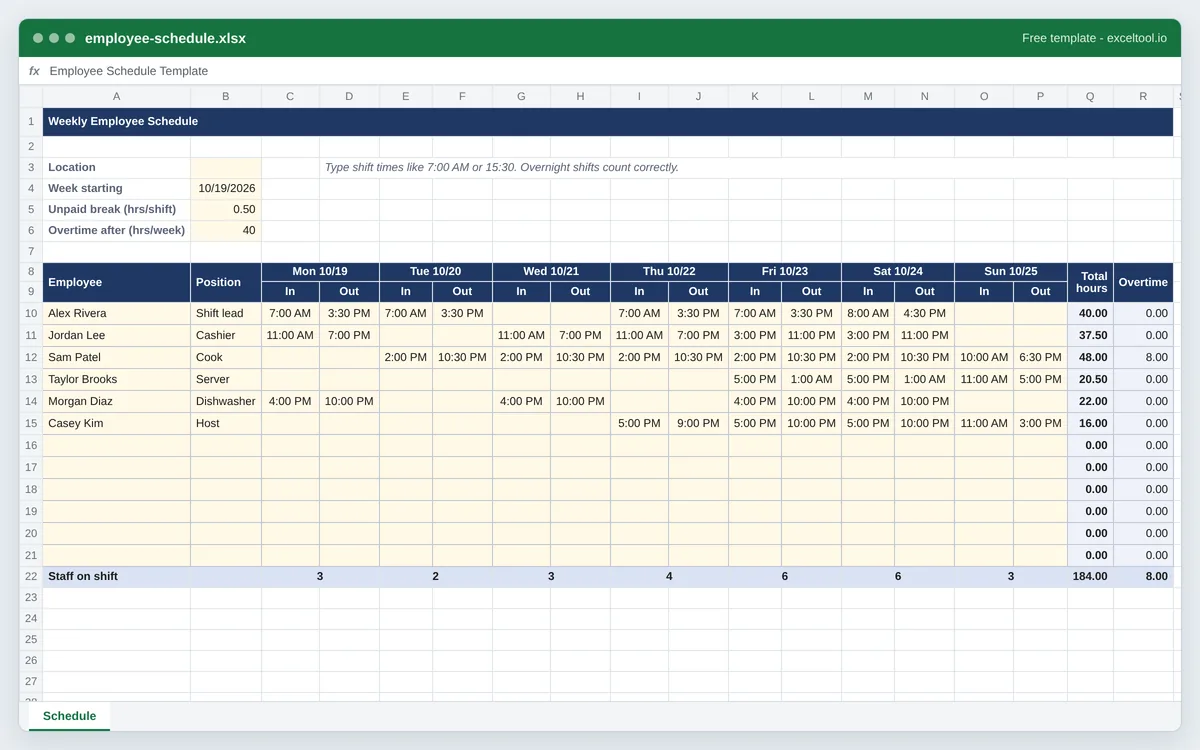
- One row per employee with an In and Out time for each day of the week; dates fill in from the week start.
- Weekly hours worked out by formula, less the unpaid break, with overnight shifts handled.
- Overtime hours past the 40-hour FLSA workweek, flagged for the manager.
Opens in Excel, Google Sheets (File > Import), Apple Numbers and LibreOffice. Built in your browser; nothing is uploaded.
Overtime is flagged past 40 hours a week (the FLSA rule). Some states, such as California, also require daily overtime.
| A | B | C | D | E | F | G | H | I | |
|---|---|---|---|---|---|---|---|---|---|
| 1 | Weekly Employee Schedule | ||||||||
| 2 | |||||||||
| 3 | Location | Type shift times like 7:00 AM or 15:30. Overnight shifts count correctly. | |||||||
| 4 | Week starting | 46314 | |||||||
| 5 | Unpaid break (hrs/shift) | 0.5 | |||||||
| 6 | Overtime after (hrs/week) | 40 | |||||||
| 7 | |||||||||
| 8 | Employee | Position | =$B$4+0 | =$B$4+1 | =$B$4+2 | =$B$4+3 | |||
| 9 | In | Out | In | Out | In | Out | In | ||
| 10 | Alex Rivera | Shift lead | 0.2916666666666667 | 0.6458333333333334 | 0.2916666666666667 | 0.6458333333333334 | 0.2916666666666667 | ||
| 11 | Jordan Lee | Cashier | 0.4583333333333333 | 0.7916666666666666 | 0.4583333333333333 | 0.7916666666666666 | 0.4583333333333333 | ||
| 12 | Sam Patel | Cook | 0.5833333333333334 | 0.9375 | 0.5833333333333334 | 0.9375 | 0.5833333333333334 | ||
| 13 | Taylor Brooks | Server | |||||||
| 14 | Morgan Diaz | Dishwasher | 0.6666666666666666 | 0.9166666666666666 | 0.6666666666666666 | 0.9166666666666666 | |||
| 15 | Casey Kim | Host | 0.7083333333333334 | ||||||
| 16 | |||||||||
| 17 | |||||||||
| 18 | |||||||||
| 19 | |||||||||
| 20 | |||||||||
| 21 | |||||||||
| 22 | Staff on shift | =COUNT(C10:C21) | =COUNT(E10:E21) | =COUNT(G10:G21) | =COUNT(I10:I21) |
Preview of the first 22 rows. Cells shown as =SUM(...) are live formulas in the downloaded workbook, not pasted numbers.
What you get
- •One row per employee with an In and Out time for each day of the week; dates fill in from the week start.
- •Weekly hours worked out by formula, less the unpaid break, with overnight shifts handled.
- •Overtime hours past the 40-hour FLSA workweek, flagged for the manager.
- •Staff on shift each day, and an optional labor cost column from each person's hourly rate.
Other templates
About this template
A work schedule answers two questions at once: for each employee, when are they working this week, and for each day, who is on. This template is the grid managers in restaurants, retail stores, clinics and warehouses draw every week - employees down the left, days across the top - with the arithmetic built in, so the schedule also tells you how many hours each person is booked for before the week starts.
Each day has an In and an Out column. Type the shift start and end times (7:00 AM, 3:30 PM) and the Total hours column adds every shift for the week, minus the unpaid break per shift set at the top. A shift that ends after midnight - a closing shift from 5 PM to 1 AM - is counted correctly because each shift's length is taken modulo one day.
Overtime is flagged against the FLSA's 40-hour workweek: anyone scheduled past the threshold shows the extra hours in the Overtime column and the cell turns amber, which is the cheapest moment to fix it. Some states add daily overtime (California, for example, after 8 hours in a day), so check your state's rule. Turn on labor cost on this page and each row gets an hourly rate and a cost with overtime at time and a half.
Layout: location, week start, break length and overtime threshold in rows 3 to 6; the two header rows (day and date, then In and Out) in rows 8 and 9; employees from row 10; and a Staff on shift row that counts how many people start a shift each day.
How to use it
- Set the week - Type the first day of the week in B4. The day headings show the dates by formula, so next week's schedule is a copy of the sheet with one date changed.
- List the team - Employee name and position in columns A and B. Leave a blank row between departments or shifts if that helps the printout read.
- Enter shifts - Start time under In and end time under Out for each day worked: 9:00 AM, 5:30 PM, or 24-hour 17:30. Leave both blank for a day off.
- Check hours and overtime - Total hours is the week per person after the unpaid break in B5. Anything past the overtime threshold in B6 appears in the Overtime column; rebalance shifts before the schedule goes out.
- Print and post it - The PDF is a blank weekly schedule on US Letter, landscape. The workbook prints the same way with the header rows repeated, so you can fill it in on screen and post the printout.
Formulas in this workbook
Every formula below is written into the workbook itself, exactly as shown. The cell references are the ones the default options produce; change the row or column counts and they shift to match.
=$B$4+0- The day heading over each In/Out pair: the week start plus 0 to 6 days, formatted as the weekday and date (Mon 10/19).=ROUND(IF(COUNT(C10,D10)=2,MOD(D10-C10,1)*24-$B$5,0)+IF(COUNT(E10,F10)=2,MOD(F10-E10,1)*24-$B$5,0)+IF(COUNT(G10,H10)=2,MOD(H10-G10,1)*24-$B$5,0)+IF(COUNT(I10,J10)=2,MOD(J10-I10,1)*24-$B$5,0)+IF(COUNT(K10,L10)=2,MOD(L10-K10,1)*24-$B$5,0)+IF(COUNT(M10,N10)=2,MOD(N10-M10,1)*24-$B$5,0)+IF(COUNT(O10,P10)=2,MOD(P10-O10,1)*24-$B$5,0),2)- Weekly hours: for each day with both times, the shift length in hours less the unpaid break. MOD(out - in, 1) wraps a shift past midnight, so 5:00 PM to 1:00 AM is 8 hours rather than minus 16.=MAX(0,Q10-$B$6)- Overtime: hours past the weekly threshold in B6 (40 under the FLSA), never negative.=COUNT(C10:C21)- Staff on shift: how many employees have a start time that day.=SUM(Q10:Q21)- Total scheduled hours for the week across the team; overtime has the same total beside it.
Customising it
- Color-code roles with Home > Conditional Formatting > Text that Contains on the Position column, or fill rows by department.
- For split shifts, add a second row for the same employee and add the two Total hours cells.
- Copy the sheet once per week and name the tabs by date to keep a season of schedules in one workbook.
- For daily overtime rules, add a column per day with =MAX(0,shift hours-8) and add them up beside the weekly overtime.
Frequently Asked Questions
List employees down the left and give each day an In and Out column, then add a formula that turns each shift into hours. This template does that already: type the times and it totals each person's week, flags overtime and counts staff per day.
Yes. Each shift's length is calculated with MOD(out - in, 1), which wraps past midnight, so a shift from 10:00 PM to 6:00 AM counts as 8 hours. Enter the times as they appear on the clock.
Under the federal Fair Labor Standards Act, non-exempt employees earn overtime after 40 hours in a workweek, at 1.5 times their regular rate. The threshold is a cell (B6) you can change, and some states such as California also require daily overtime.
Yes - the PDF download is a blank weekly schedule on US Letter paper in landscape, with In and Out boxes for every day, ready to fill in and post.