Excel Invoice Template Generator
Build an invoice workbook with your business details, line items that calculate themselves, and a tax line you control.
Free download - no sign-up, no email
invoice-template.xlsx
- Addressed header blocks for your business and the customer.
- Line items where Amount is Quantity x Rate, and stays blank until both are filled.
- Subtotal, an editable tax rate, and a Total that follows both.
Opens in Excel, Google Sheets, Numbers and LibreOfficeBuilt in your browser · nothing uploaded
Options
Every row already carries the amount formula.
Editable in the workbook - the tax cell reads this rate rather than hard-coding it.
| A | B | C | D | E | F | G | H | |
|---|---|---|---|---|---|---|---|---|
| 1 | INVOICE | |||||||
| 2 | ||||||||
| 3 | From | Bill to | Invoice number | INV-001 | ||||
| 4 | Your Business Name | Customer Name | Invoice date | |||||
| 5 | Address line 1 | Address line 1 | Due date | |||||
| 6 | Address line 2 | Address line 2 | ||||||
| 7 | Email / phone | Email / phone | ||||||
| 8 | ||||||||
| 9 | Description | Qty | Rate | Amount | ||||
| 10 | =IF(COUNT(B10,C10)=2,B10*C10,"") | |||||||
| 11 | =IF(COUNT(B11,C11)=2,B11*C11,"") | |||||||
| 12 | =IF(COUNT(B12,C12)=2,B12*C12,"") | |||||||
| 13 | =IF(COUNT(B13,C13)=2,B13*C13,"") | |||||||
| 14 | =IF(COUNT(B14,C14)=2,B14*C14,"") | |||||||
| 15 | =IF(COUNT(B15,C15)=2,B15*C15,"") | |||||||
| 16 | =IF(COUNT(B16,C16)=2,B16*C16,"") | |||||||
| 17 | =IF(COUNT(B17,C17)=2,B17*C17,"") | |||||||
| 18 | =IF(COUNT(B18,C18)=2,B18*C18,"") | |||||||
| 19 | =IF(COUNT(B19,C19)=2,B19*C19,"") | |||||||
| 20 | =IF(COUNT(B20,C20)=2,B20*C20,"") | |||||||
| 21 | =IF(COUNT(B21,C21)=2,B21*C21,"") | |||||||
| 22 | Subtotal | =SUM(D10:D21) |
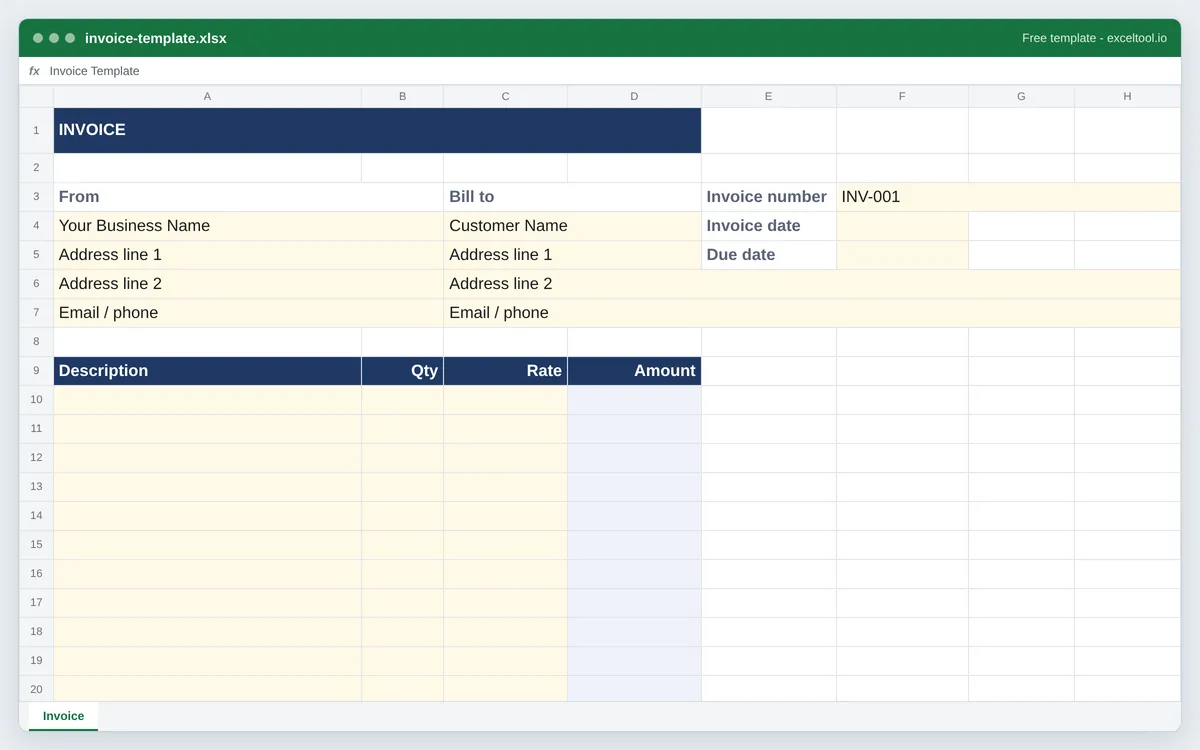
Preview of the first 22 rows. Cells shown as =SUM(...) are live formulas in the downloaded workbook, not pasted numbers.
Built in your browser · nothing uploadedinvoice-template.xlsx · 1 sheetOpens in Excel, Google Sheets, Numbers and LibreOffice
What you get
- Addressed header blocks for your business and the customer.
- Line items where Amount is Quantity x Rate, and stays blank until both are filled.
- Subtotal, an editable tax rate, and a Total that follows both.
- Shipped as a real .xlsx, so it opens in Excel, Google Sheets, LibreOffice, and Numbers.
Other templates
About this template
An invoice is a demand for payment, so the workbook is built around three things a customer needs to find in five seconds: who is billing them, what for, and how much. Everything else on the sheet is arithmetic that keeps those figures honest while you edit the lines.
It is aimed at people who bill occasionally and do not want an accounting subscription for it - freelancers, contractors, small studios, a side business sending a handful of invoices a month. One workbook holds one invoice; you copy the sheet for the next one rather than logging into anything.
The generated sheet lays out like this. Row 1 is the INVOICE banner. Your details go in column A, rows 3 to 7. The customer block sits in column C over the same rows. The reference block - invoice number, invoice date, due date - is in columns E and F, to the right of the table, with the two date cells already formatted as dates (mm/dd/yyyy in a US download, yyyy-mm-dd elsewhere). Row 9 is the table header: Description, Qty, Rate, Amount. Twelve blank item rows follow by default, and the Subtotal, Tax rate, Tax and Total stack sits directly under the Amount column in rows 22 to 25. A wrapped Notes block for payment terms closes the sheet.
The Amount column is a formula on every row, and the Tax figure reads a rate cell rather than a number typed into a formula, so nothing on the sheet has to be recalculated by hand when a line changes.
How to use it
- Fill in the two address blocks - A4:A7 for your business, C4:C7 for the customer. They are ordinary text cells - overwrite the placeholder lines, and delete any you do not need rather than leaving them reading Address line 2.
- Set the reference block - The invoice number goes in F3. F4 and F5 are the invoice date and the due date and are formatted as dates, so type a real date and Excel will store it as one; a due date typed as text will not sort or subtract later.
- Enter one line per thing you are billing for - Description in column A, quantity in B, rate in C. The Amount in column D fills itself in as soon as B and C both hold numbers, and stays empty until then so an unused row does not print a zero.
- Set the tax rate once, in the sheet - D23 is percent-formatted: type 20 for twenty percent and the Tax cell below multiplies the subtotal by it. Generating with the tax line switched off removes both rows and makes the Total equal the subtotal.
- Add item rows without breaking the subtotal - Right-click a row inside the item block - anything between the first and last item row - and choose Insert. SUM(D10:D21) stretches to cover the new row automatically. The new row is genuinely blank, so copy the Amount cell down from the row above to give it the formula.
- Send it, then keep it - File > Export or Save As with PDF selected produces the copy you email; keeping the .xlsx means the next invoice is a copied sheet with a new number rather than a rebuild.
Formulas in this workbook
Every formula below is written into the workbook itself, exactly as shown. The cell references are the ones the default options produce; change the row or column counts and they shift to match.
=IF(COUNT(B10,C10)=2,B10*C10,"")- The Amount cell on every item row. COUNT returns how many of the two cells hold numbers, so the multiplication only runs when both quantity and rate are filled in; otherwise the cell shows an empty string rather than a zero.=SUM(D10:D21)- The Subtotal, covering exactly the item rows you asked for - twelve by default. The empty strings the unfilled rows return are ignored by SUM, which is why a half-used invoice still totals correctly.=D22*D23- The Tax line: subtotal multiplied by the rate cell above it. Because the rate lives in a cell rather than inside the formula, changing it is a single edit and the audit trail stays visible on the invoice.=D22+D24- The Total: subtotal plus tax. Generate without the tax line and this becomes =D22, so the Total always sits in the same place on the sheet whichever way you build it.
Customizing it
- Add a discount line by inserting a row just above the Total, labeling it in column C, and putting something like =-D22*0.1 in column D. Excel repoints the Total formula as the rows shift; extend it to add the new cell.
- Drop a logo in with Insert > Pictures and position it over the banner row, which is 44 pixels tall and merged across the table width.
- Change the currency by selecting the money column and using Format Cells > Currency. The stored values are plain numbers, so nothing recalculates.
- Set a print area of A1:F29 under Page Layout so the reference block in columns E and F prints with the table rather than spilling onto a second page.
- Turn payment terms into a calculation: with the invoice date in F4, put =F4+30 in F5 and the due date follows the invoice date automatically.
Frequently Asked Questions
Every Amount cell holds a formula that waits for both a quantity and a rate before it multiplies them. Until then it returns an empty string, so a twelve-row invoice with three lines on it prints three amounts rather than three amounts and nine zeros.
Yes, and it is the simplest way to keep a numbered sequence. Right-click the Invoice tab, choose Move or Copy and tick Create a copy, then update the number in F3 and clear the item rows. Formulas refer to cells on their own sheet, so the copy is independent.
Not as generated - there is one rate cell and one Tax row. Insert a second pair of rows beneath them, point the new tax line at the subtotal in the same way, and add the extra cell to the Total formula.
No. F3 is a text cell and the workbook contains no macros, so nothing changes it unless you do. Excel will continue a numbered sequence for you if you copy the sheet and drag the cell, but a template that silently renumbered itself would be a liability on a document you have already sent.