Image to Excel Converter
Read a table out of a screenshot or photo and turn it into an Excel workbook. AI extraction reads the image on our server and is the default; Private mode keeps the image on your device.
- Free
- No sign-up
- AI use labeled
Drop your file here or choose a fileTap to choose a file
up to 50MB
Supports .png, .jpg, .jpeg, .webp, .bmp, .heic, .heif · or paste a file from your clipboard
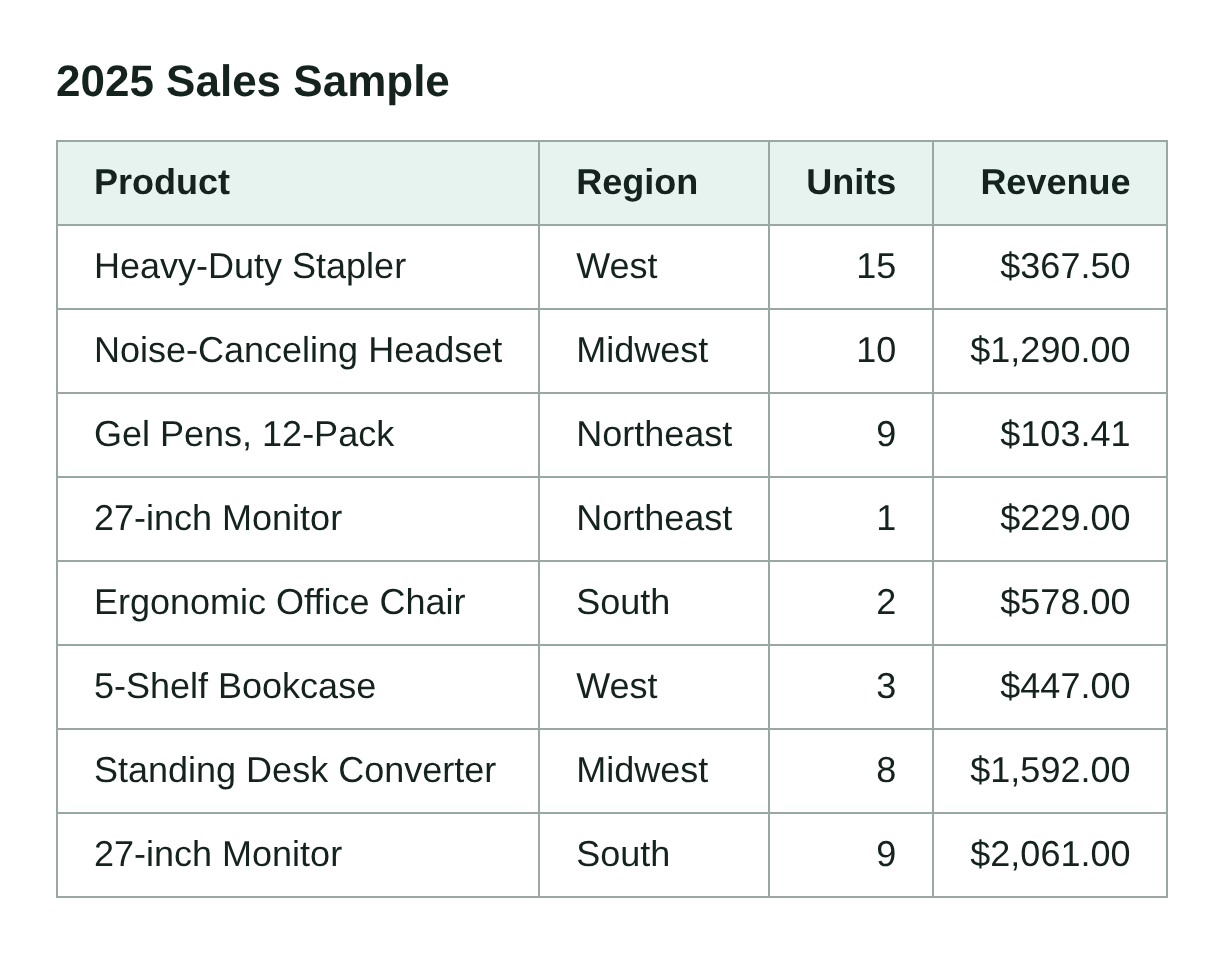
No file handy? · download it
Tick the consent box to choose an image, or switch to Private mode.
How to Convert an Image to Excel
- Choose how the image is read - AI extraction sends the image to a third-party AI model and is the default because it recovered our release fixture exactly. Private mode keeps the image on your device and runs OCR in your browser.
- Add the image - Drop a PNG, JPEG, WebP, BMP, or HEIC screenshot or photo of a table onto the page.
- The table is reconstructed - Rows and columns come back as an editable grid - either from the AI model or from the in-browser OCR engine, depending on the mode you chose.
- Check the preview and download - Correct anything that was misread directly in the preview, then save the result as an .xlsx workbook.
Two Ways to Read a Table, One Honest Trade-off
AI extraction sends your image through our server to a third-party vision model and asks it for the table and nothing else. Reading the layout as a whole can recover rows and columns that local OCR misses, but it is not guaranteed on every image. The trade-off is stated plainly above the upload area: the image leaves your device to be read.
Private mode is the opposite bargain. The OCR engine and its language data are served from this site and run inside your browser, so the image never leaves your device and the tool keeps working offline once loaded. It reads flat, well-lit screenshots reliably; rotation, glare, and handwriting will beat it. If you can screenshot the table rather than photograph it, do.
Always Check Before You Trust It
Extraction mistakes are quiet and plausible: 0 for O, 1 for l, a decimal point lost in a low-resolution scan. Nothing flags them, which is exactly why the preview above is editable rather than read-only - it is faster to fix a cell here than to hunt for it after the numbers have gone into a report.
Frequently Asked Questions
In AI extraction mode, yes: the image is sent to our server on Vercel and passed through Vercel AI Gateway to a third-party AI model, solely to read the table out of it. In Private mode nothing is uploaded - OCR runs inside your browser and the image stays on your device. The mode switch sits above the upload area, so you choose before anything is sent.
Our server does not save the image or the extracted cells; it forwards the image to the AI model, returns the table to you, and keeps no copy. ExcelTool's application logs never include the image or extracted cell content. The image does pass through Vercel and the model provider's infrastructure to produce the result - if that is not acceptable for a sensitive document, use Private mode instead.
On our 4-by-4 release fixture, AI extraction returned all 16 cells exactly; results still vary with image quality and table layout. Private mode is strongest on flat, well-lit screenshots and weaker on photos taken at an angle. Neither mode is guaranteed, and both can misread a low-resolution decimal point - always check the editable preview before downloading.
In Private mode, columns are inferred from the gaps between words, because an image has no cell structure to read - tight spacing or wrapped cells can split differently from how they look. AI extraction instead attempts to reconstruct the grid from the picture as a whole, but it can still get a layout wrong. Either way the preview is editable, so you can fix a cell before exporting.